You will need the following...
1. Go to the Main Menu (The quickest way to do this is to Swipe Up from the bottom of the screen or press the Home button which is the only button on the front if you are using an iPhone SE)
2. Select Settings which should look like the image below
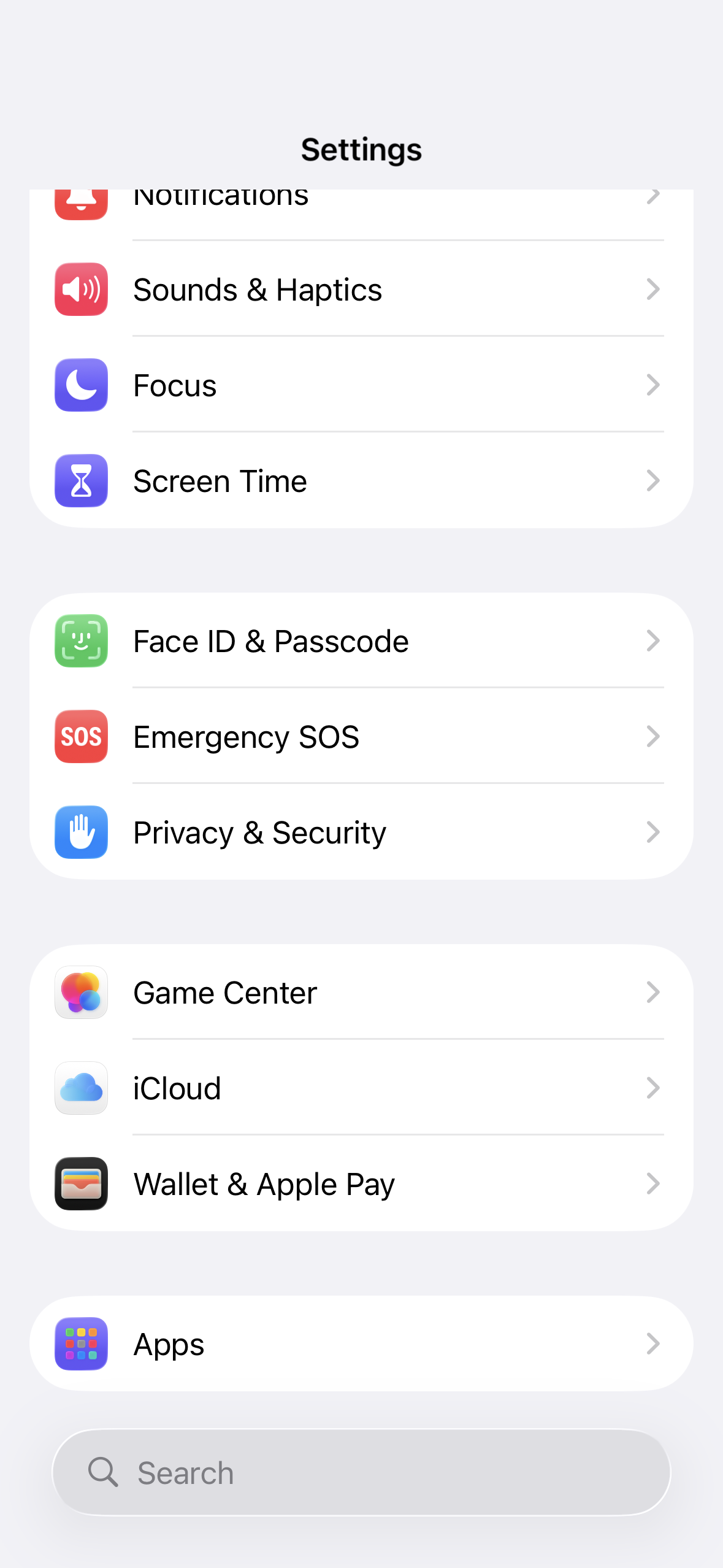
3. Scroll down and tap on Apps
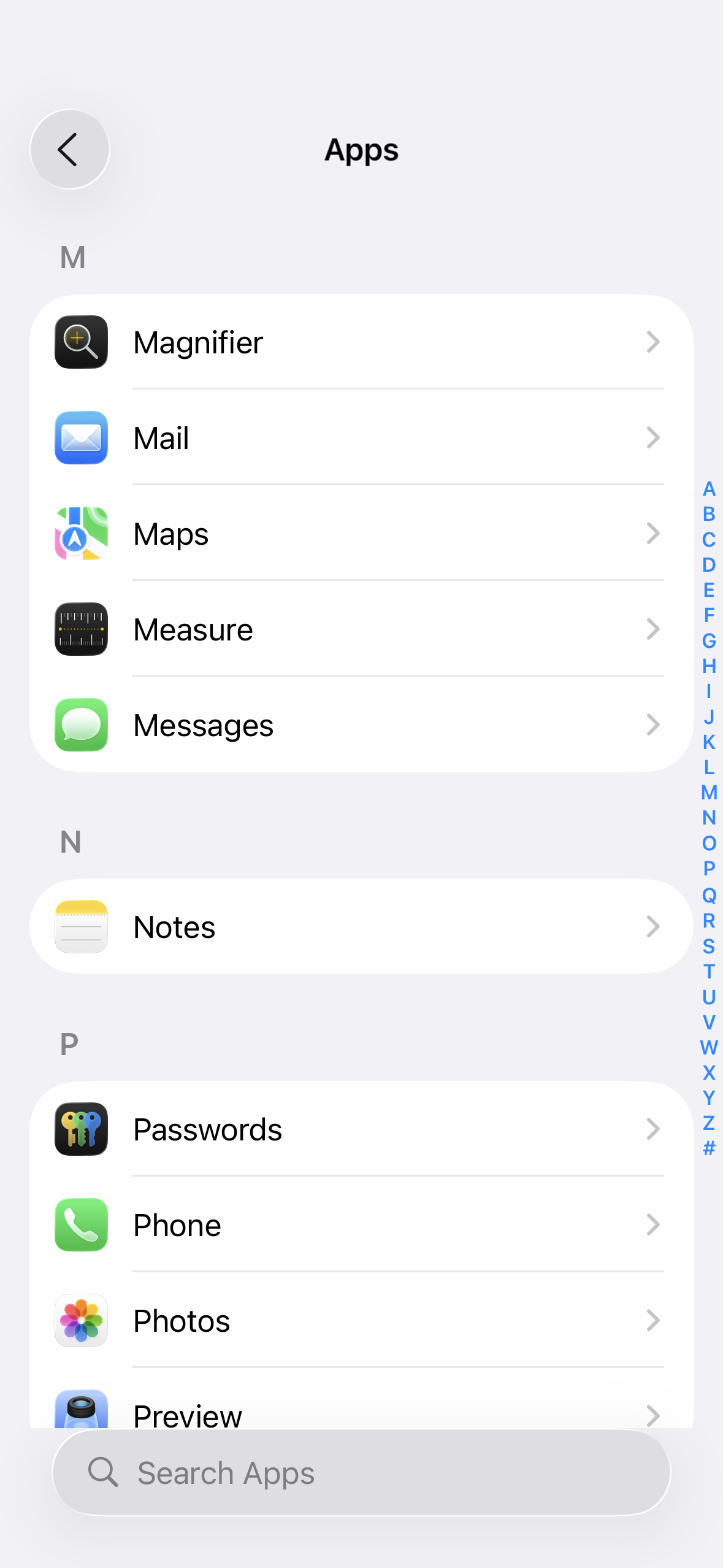
4. Tap on Mail
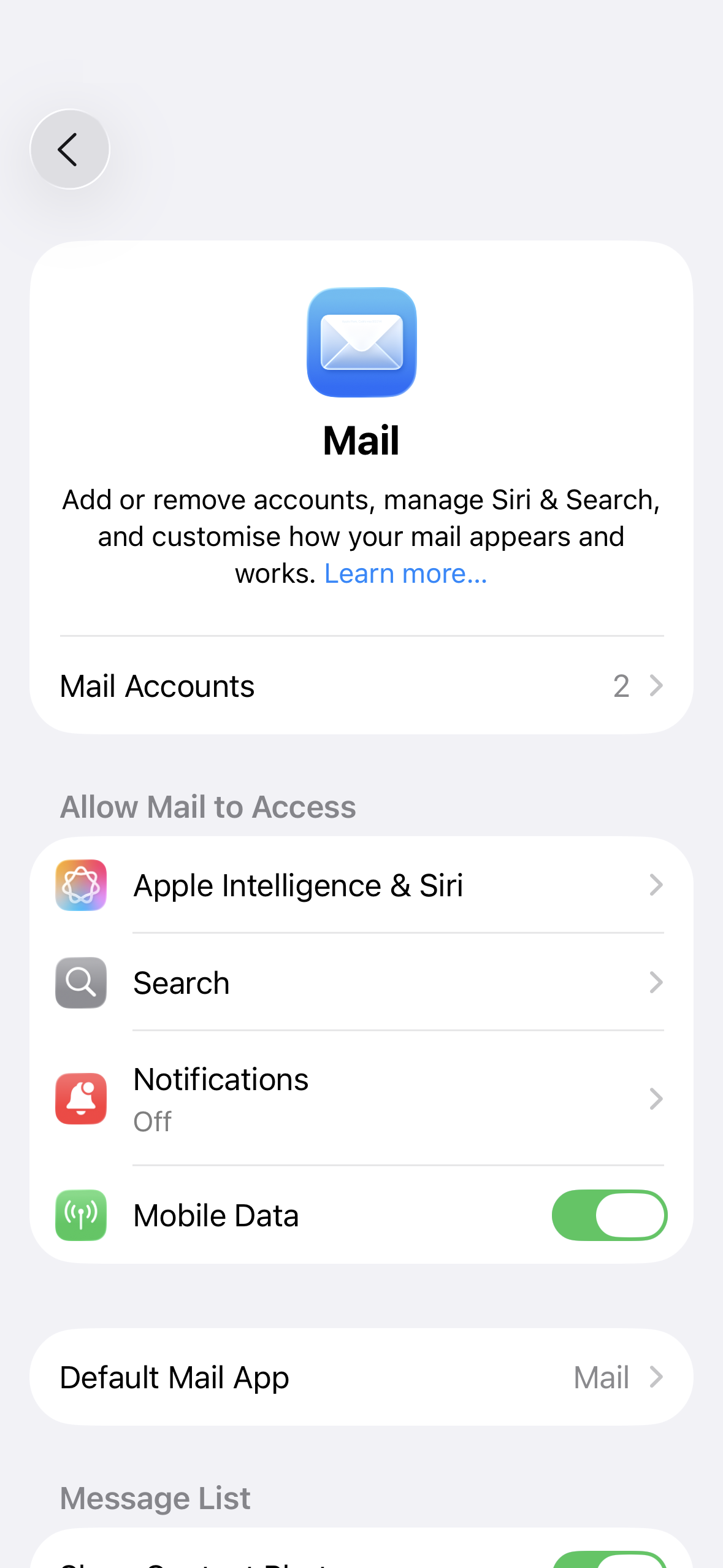
5. Tap on Mail Accounts
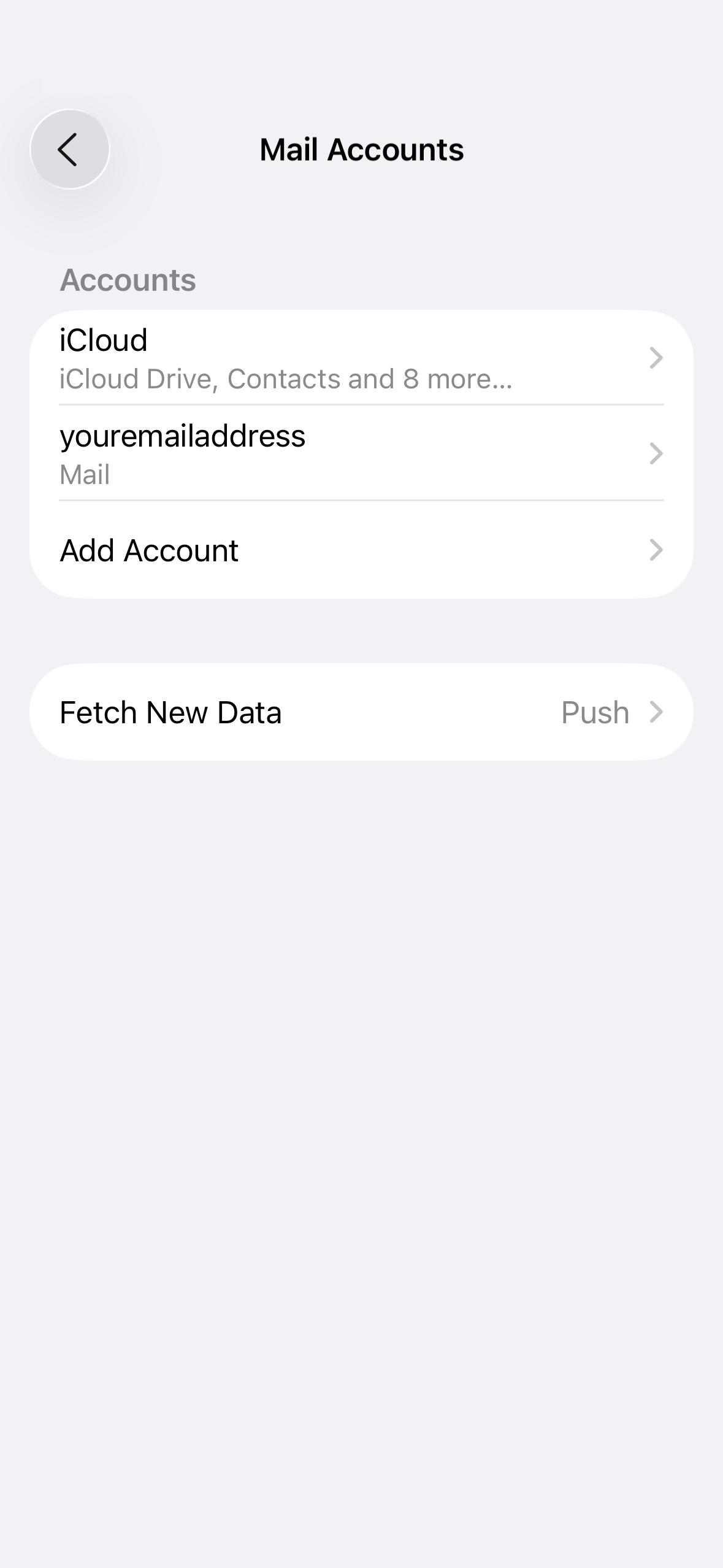
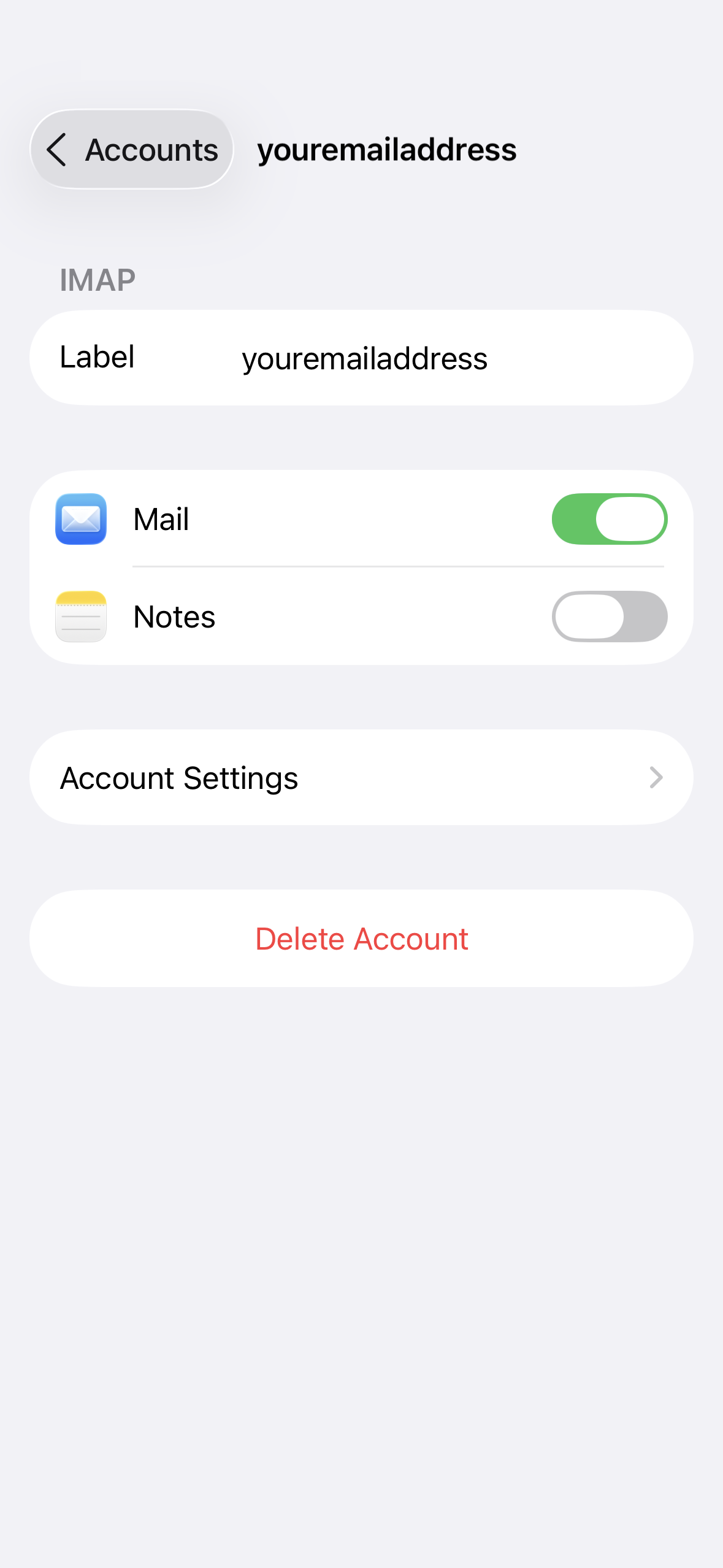
6. Tap on Your Email
7. Tap on Account Settings
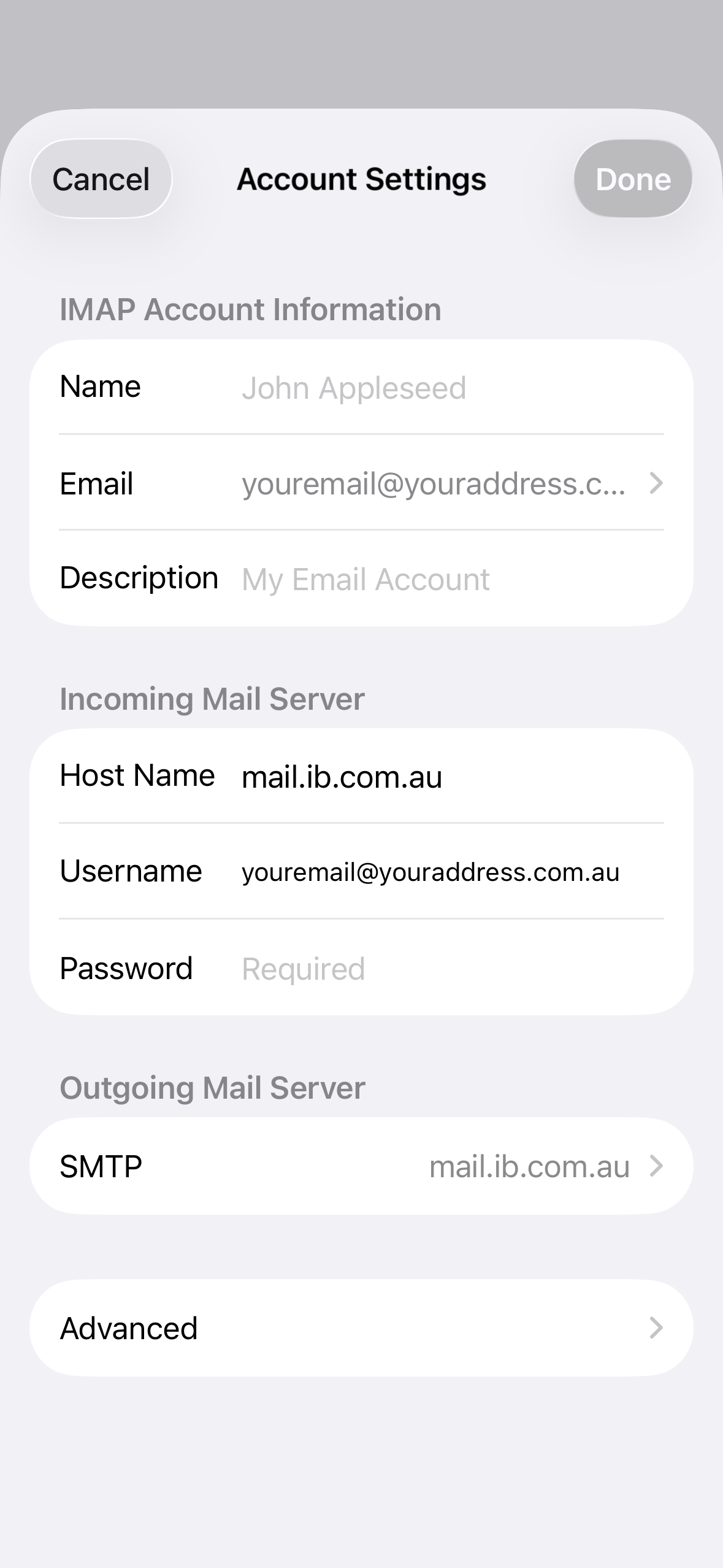
8. Tap on Your Email under the IMAP Account Information section
6. Tap Add Another Email and type in the email address you wish to use then hit Enter on the keyboard.
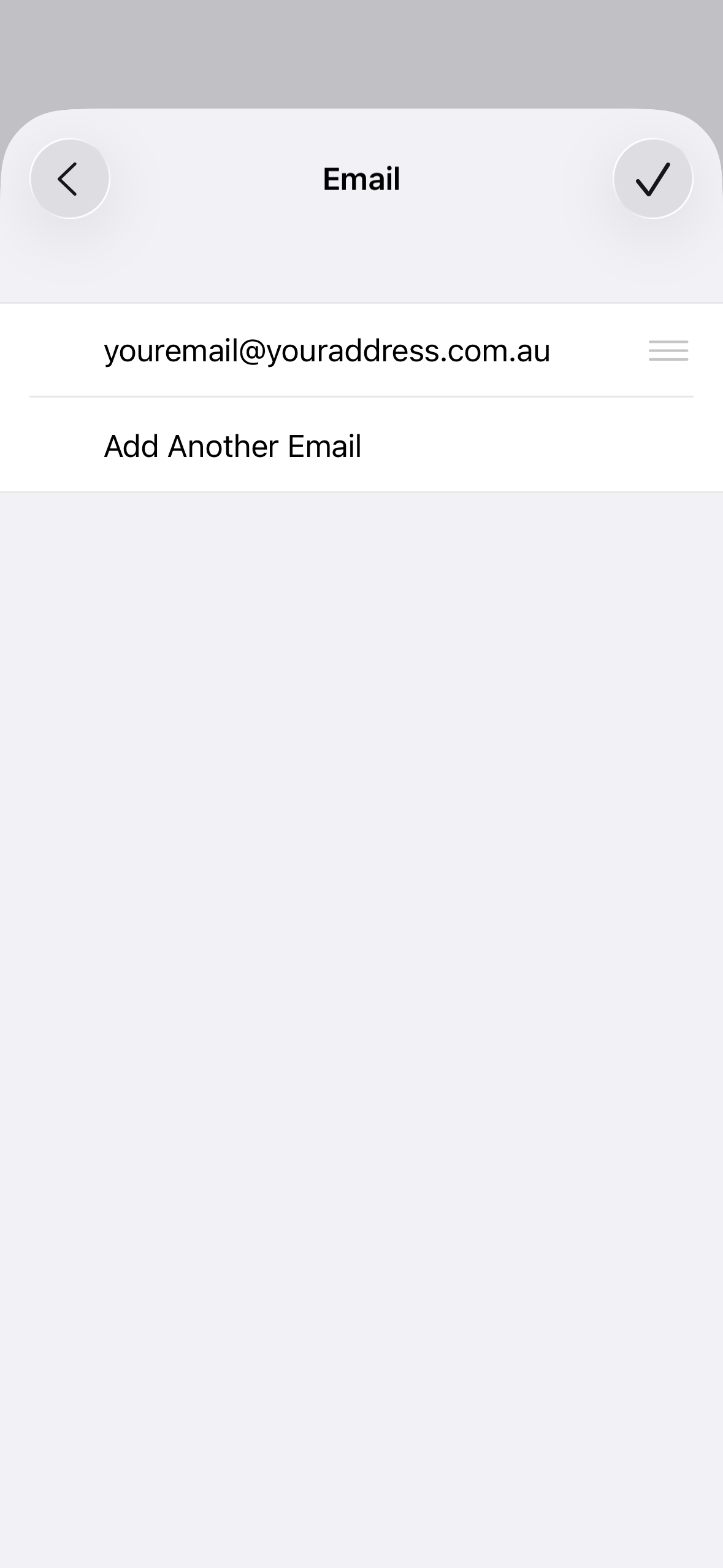
7. Tap on the new email address in the list, a tick will appear beside it (your mail program will use this alias to send emails for this account).
8. After doing this, tap Back to go back one screen (top left).
9. Then click Done to save the changes.
Warning: If you Swipe Up from the bottom of the screen or Tap the physical home button (if present) before doing this, your settings won't be saved
Note: Be sure to test the new alias. If it's not correct or does not exist then people will not be able to reply to emails you send them!
